Keep three different numbers separate
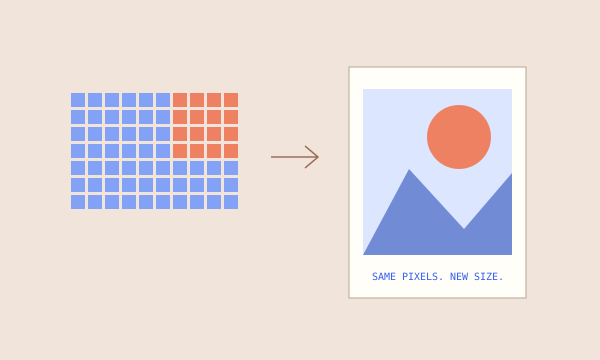
A 3600 × 2400 image contains 3600 pixel columns and 2400 pixel rows. That gives six inches at 600 PPI or twelve inches at 300 PPI across the width. The source grid is unchanged in both calculations.
Adobe’s documentation distinguishes pixel dimensions, physical size and resolution, and notes that resizing without resampling preserves the existing pixel count. Our tool follows that numeric relationship. It does not open, rewrite or inspect your image file.
Enter the actual width and height in pixels from your image application. A file size in megabytes is not a substitute: compression and file contents can make similarly sized files contain different pixel counts.
First ask: what size corresponds to this PPI?
Divide pixel width by the chosen PPI to get inches. Divide pixel height by the same PPI for the height. A 3600 × 2400 pixel image at 300 PPI therefore corresponds to 12 × 8 inches.
Switching to centimeters multiplies those dimensions by 2.54: 30.48 × 20.32 cm. The unit switch does not change the source pixels. The 300 PPI default is an example setting, not a guarantee that every image, paper and viewing situation will meet a particular quality target.
This calculation describes the full image rectangle. It does not include borders, printer margins or a frame mat.
Then ask: what PPI remains at my target width?
The target-width input answers a second question. If the same 3600 pixels must span 24 inches, effective resolution is 3600 ÷ 24 = 150 PPI. Keeping the full aspect ratio makes the target height 16 inches.
Doubling the physical width also doubles the height; the printed rectangle has four times the area. The tool reports the density of the same pixel grid at that size. It has not resampled a file to create extra pixels.
“At chosen PPI” uses the resolution field. “At target width” uses your physical width. They are separate views of the same source pixels, so both can remain visible without changing the original file.
Check the final output in your print application
PPI describes image pixels per inch. Printer dot specifications describe a different part of the output process. This calculator does not simulate ink dots, sharpening or the quality of the image’s existing detail.
Confirm which application or printer dialog controls scaling. An automatic “fit” option can change the physical size from the number you calculated. Use the final preview and an appropriate sample for the actual paper and process.
If your target rectangle uses a different aspect ratio, keeping every pixel means leaving space around the image; filling the entire rectangle requires cropping or distortion. Our result preserves the source ratio and does neither.
References & further reading
Product documentation supplies context. The examples and calculator explanations are original to this site.